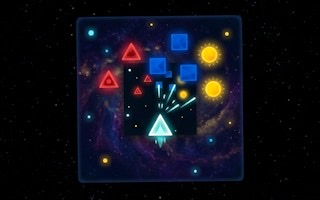
Run Little Ship: Cyberpunk
Steer through neon space, dodge incoming threats, and use a ready dash to keep your ship alive.
- Session
- Short survival runs
- Controls
- Mouse follow or WASD / arrow keys
- Best for
- Skill
Landscape gives you more room
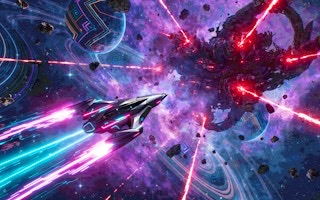
Find an escape route
Run Little Ship: Cyberpunk
Mouse follow or WASD / arrow keys
Play loads a game hosted by GamePix that may show ads and use cookies.
Provided by GamePix. Ads and cookies may load only after you press Play. Read the GamePix Privacy and Cookie Policy.
Start an unlocked stage and steer toward open space while watching incoming threats.
How to play
How to Play Run Little Ship: Cyberpunk
Choose a steering mode, guide the ship through the moving hazard field, preserve HP with readable turns and a ready dash, and use HUD states to decide when a special action is actually available.
- 01
On the menu, choose Auto-Follow Mouse, WASD, or Arrows, then select START. Neon Sector begins at the highest unlocked stage shown on the menu.
- 02
Steer with the chosen input. In Auto-Follow Mouse mode, move or drag the pointer in the intended heading; the camera follows the ship, so read the trail and world flow rather than expecting the ship to travel to a fixed screen coordinate.
- 03
Look ahead for asteroids, enemy drones, projectiles, and open space. Begin a gradual turn before a hazard reaches the ship instead of waiting for a last-second reversal.
- 04
Watch HP after close calls. If it drops, widen the next escape route and avoid turning immediately back across the same incoming path.
- 05
Use C for Glitch Dash only when the HUD says Dash READY and an obstacle or attack makes the burst useful. After activation, read the charging state before relying on it again.
- 06
Use Space, Shift, or Right Click for Core Overload according to the official controls, and use the on-screen state as the availability check rather than assuming a duration or cooldown.
- 07
Press Escape to pause. Confirm the PAUSED panel before looking away, then choose RESUME when ready to return to the same live run.
About the game
Steer a cyber-ship through an open neon survival run
Run Little Ship: Cyberpunk is a fast space survival shooter set in a moving synthwave starfield. Choose Auto-Follow Mouse, WASD, or Arrow controls, then guide the ship through hazards while the run score rises. This is open steering through space rather than a fixed three-lane runner. The camera follows the ship near the center, so a change in heading is most visible in the ship's trail, the direction of the background flow, and the way threats approach.
Neon Sector opens at Stage 1 of 100 with MAX UNLOCKED 1. At the start of a run, the HUD shows HP 100/100, Shield 3.0s, Dash READY, Overdrive CHARGING 0%, and Score 0. These readouts separate immediate survival from special-action availability. HP tells you how much damage the current run can absorb, while READY or CHARGING states tell you whether an action can be used now.
A first run can become dangerous quickly. Steering toward the lower-right changed the flight direction and HP fell to 80. Pressing C produced the Glitch Dash trail, moved Dash to a charging state, and the score reached 140. Turning back toward the upper-left continued the curved route as score rose to 250 and HP fell to 50. The lesson is not to memorize screen corners; it is to keep a clear escape heading, watch incoming paths, and avoid stacking abrupt corrections after damage.
Controls
Controls for Run Little Ship: Cyberpunk
- Auto-Follow Mouse
- Steer the ship's heading with pointer movement while the camera follows the flight.
- WASD or Arrow Keys
- Move and steer with keyboard controls on desktop.
- C
- Activate Glitch Dash when its HUD state reads READY.
- Space, Shift, or Right Click
- Activate Core Overload when the run indicates it is available.
- Escape
- Open the pause menu with Resume, Settings, and Main Menu choices.
- Touch drag and on-screen buttons
- Use the official mobile steering control and the visible Overload and Dash buttons.
Useful strategy
Protect an escape heading before the hazard field closes in
- Look in the direction the trail is carrying you, not only at the centered ship. The camera follows your flight, so background motion helps reveal the current heading.
- Make one controlled turn, observe the new flow, and then refine it. Repeated sharp corrections can send the route back across a hazard you just avoided.
- Read projectile and missile direction early. Move across the incoming line with enough space to continue afterward instead of steering into a corner with no clean exit.
- Keep one side of the visible field as an escape option. Collecting a tempting item or chasing a target is less useful when the approach leaves the ship surrounded.
- Use HP as a strategy signal. After taking damage, prioritize open space and predictable movement long enough to rebuild awareness of the field.
- Treat Dash READY as a reserve, not an instruction to press C immediately. Spend it when a normal turn cannot create separation quickly enough, then plan as if it is unavailable while charging.
- Check Overdrive and other special states without guessing their timing. A rising charge percentage shows progress, but the interface should confirm readiness before the action becomes part of an escape plan.
- Pause when you need to change settings or break concentration. Verify that PAUSED is visible; opening the panel is safer than trying to manage an interruption during live flight.
Read movement from the trail and starfield
The ship remains near the center because the camera travels with it. That presentation can make steering feel subtle if you watch only the hull. Instead, use three references: the direction of the engine trail, the movement of the starfield, and the angle at which hazards enter view. Together they tell you whether the ship is curving, holding a line, or reversing its previous heading.
In Auto-Follow Mouse mode, the pointer guides direction rather than dragging the ship to a permanent point on the display. Moving toward the lower-right turns the flight that way; moving back toward the upper-left bends the route again while the camera recenters the action. Think in headings such as down-right or up-left, then judge the new path from world motion.
Use gradual steering when there is room. A broad curve keeps the next few seconds of travel easy to read and leaves time for another correction. An urgent snap turn may be necessary near a threat, but it also changes which hazards are now ahead. After any strong turn, immediately scan the new forward side instead of continuing to watch the obstacle already behind you.
Cross hazard lines without losing the next exit
Asteroids occupy space while drones and later enemies can add moving attack paths. Identify the line a threat is following, then choose an escape that crosses that line once and continues into open space. Turning parallel too close to a projectile can keep it beside the ship, while reversing into the old route can meet whatever followed from behind.
Keep a mental exit beyond the immediate dodge. Before steering around an asteroid, locate the open region where the ship should be after the turn. If both sides are crowded, reduce the ambition of the route and take the wider gap. Survival depends on having room for the second correction, not merely clearing the first visible obstacle.
When HP falls, simplify. In the opening run, health dropped from 100 to 80 and later to 50 while score continued rising. Score progress does not cancel damage. After a hit, look away from the number long enough to stabilize the heading, widen separation from nearby threats, and verify that the next escape does not cross the same danger again.
Use Glitch Dash as a timed escape reserve
Glitch Dash is bound to C on desktop and has its own HUD state. The run begins with Dash READY. Activating it creates a visible dash trail, after which the display changes to a charging state. That state change is the reliable boundary: once used, do not build the next dodge around another immediate dash until the interface confirms readiness again.
Choose the heading before pressing C. A burst is more useful when it carries the ship through a known opening than when it accelerates into an unread part of the field. Point toward open space, check that the exit is not occupied, then dash. As soon as the effect ends, read the new trail and incoming hazard direction because the camera-follow view may have revealed a different set of threats.
Save the ready dash when ordinary steering provides enough room. Keeping it available gives you an answer to a sudden blocked path, missile approach, or late correction. Spending it for routine movement removes that option during its charge period. This is a flexible rule rather than a promise that every dangerous position can be escaped; positioning before the crisis still matters.
Let HUD states control special-action decisions
The opening HUD separates health, shield time, dash, Overdrive charge, score, and level. Read each for its own question. HP answers how damaged the ship is. READY or CHARGING answers whether a special action can be relied upon. A percentage shows progress toward a state without guaranteeing it is available. Score records the run, but it should not pull attention away from a hazard already entering the flight path.
Core Overload is available through Space, Shift, or Right Click in the official desktop controls, with on-screen buttons on touch devices. Use the interface state as the authority for activation. Avoid assuming a fixed effect length, recharge period, or guaranteed outcome from the control label alone. The same caution applies to Overdrive: charging progress is information, not permission to treat the action as ready.
Escape opens a clear PAUSED panel containing RESUME, SETTINGS, and MAIN MENU. In one live pause, the panel preserved a visible run state at Score 340, HP 50, Level 1, and Overdrive 13%. Those values show why pausing is useful for orientation: you can read the current situation without adding steering input. Resume only after deciding which heading and status need attention first.
Quick answers
Run Little Ship: Cyberpunk FAQ
Is Run Little Ship: Cyberpunk a three-lane runner?
No. You steer through open space. The camera follows the ship near the center, so use the trail, background flow, and incoming threats to read the current heading.
How does Auto-Follow Mouse steering work?
Move or drag the pointer toward the direction you want to fly. The ship changes heading while the camera follows, rather than moving to and staying at that screen coordinate.
How do I use Glitch Dash?
Press C on desktop when Dash reads READY, ideally after aiming toward a clear exit. After activation, wait for the HUD to confirm readiness again before depending on another dash.
What controls Core Overload?
The official desktop controls list Space, Shift, or Right Click. On touch devices, use the visible on-screen button and check the current status before activation.
What should I do after losing HP?
Prioritize open space, hold a readable heading, and scan the new forward field. Avoid immediately reversing across the path that just caused damage, and keep Dash ready if possible.
How do I pause the run?
Press Escape and confirm the PAUSED panel appears. From there you can Resume, open Settings, or return to the Main Menu without continuing live steering.
Game information
Game details
Run Little Ship: Cyberpunk is developed by kaosedeveloper and provided through the GamePix-hosted player. The external player may display advertising and is governed by GamePix's privacy terms.
- Developer
- kaosedeveloper
- Distributor and host
- GamePix
More about this game
Keep the break going