Monster Chef 2
Select matching ingredients from a moving belt and watch the order shift into cooking.
- Session
- Flexible short sessions
- Controls
- Click or tap a matching ingredient
- Best for
- Puzzle
Fill the next order
Monster Chef 2
Click or tap a matching ingredient
Play loads a game hosted by GamePix that may show ads and use cookies.
Provided by GamePix. Ads and cookies may load only after you press Play. Read the GamePix Privacy and Cookie Policy.
Start level one and read the order card.
How to play
How to Play Monster Chef 2
Read the current order card, then select matching belt items.
- 01
Start level one and note the two-minute timer and requested icons.
- 02
Wait for a requested ingredient to enter an easy click area on the moving conveyor.
- 03
Click the ingredient once and look for its blue check on the order card.
- 04
After all required checks appear, watch the card switch to Cooking before touching the processing machine.
About the game
Monster Chef 2
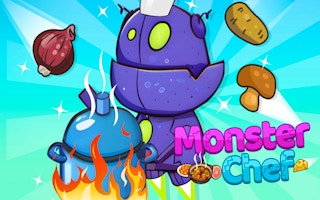
Monster Chef 2 turns a moving belt of ingredients into a quick kitchen decision. The observed level-one tutorial began with a two-minute timer and an order card requesting two yellow vegetables. Clicking the two matching items as they passed marked both positions on the card with blue checks. The order status changed from Preparing to Cooking, and a second order appeared. That is a complete, visible core action: read an order, collect what it requests, and watch the kitchen move to its next stage.
The central red processing machine displayed a prompt to press it for acceleration. One click produced a small amount of green progress in the observed session. That does not prove a finished dish, the value of continuous pressing, or any later level rule. For a first visit, the safe task is to understand the distinction between selecting ingredients from the belt and interacting with the machine once the order reaches the cooking stage.
This is a game of attention more than blind speed. The belt is visually busy, and the timer can make a player click the first plausible item. The order card is the source of truth: its icons tell you which ingredient to choose and its checks show what has already been collected. Work one order at a time, and confirm each response on the card before taking the next item.
Controls
Controls for Monster Chef 2
- Click or tap an ingredient on the conveyor
- Select that visible item for the current order.
- Order card checks
- Confirm that the requested item was accepted.
- Click or tap the red processing machine when prompted
- Advance the visible cooking-progress indication in the observed tutorial.
Useful strategy
Play with a clear next move
- Read the requested shapes on the card before following the belt.
- Count checked ingredients so you do not chase an item already accepted.
- Click a moving item when it is comfortably inside the play area.
- Separate the Preparing and Cooking stages; the correct target changes.
Use the order card as your recipe
At the observed start, the bottom card showed two yellow vegetable icons. They were the immediate targets, not decoration. You can use the card as a short shopping list: identify what is missing, find the matching picture on the belt, then check that the matching position on the card changed. This is more reliable than memorizing the belt contents after a quick glance.
The first accepted vegetable earned a blue check on one order position. The second matching vegetable earned the other check. That sequence matters because it gives feedback after each selection, not merely after the full order. If one click seems to miss, inspect the card before clicking again. A belt item may have moved under your pointer, or its visual similarity to another item may have misled you.
The card is also a stage indicator. In the observed tutorial, it displayed Preparing while ingredients were being gathered and Cooking once the two requested vegetables were accepted. When that word changes, reassess your next action. Continuing to click vegetables blindly after an order is complete wastes attention and may ignore the machine prompt that now matters.
Choose a clean moment to click
Ingredients move across a conveyor, so a target's position changes as you aim. Follow the requested picture briefly and click when it is clearly within the active belt area, not at the edge where it may exit. A deliberate single click provides better feedback than repeated taps at a moving cluster. Then look at the card before planning another selection.
Distinguish the requested item by its whole shape and color. In the observed first order, the two icons were yellow vegetables. A nearby food sprite with a different outline should not be treated as a match merely because it uses a warm color. If the belt is crowded, let one item pass and wait for an unmistakable instance rather than guessing under the timer.
There is a two-minute clock in the observed level-one tutorial. It creates urgency, but the first seconds are enough to read a two-item card. Spending a moment on recognition can save a mistaken click and the time needed to diagnose it. The guide does not assume the exact penalty for a wrong item, because that was not tested; it simply treats each selection as a decision worth checking.
Confirm each ingredient before moving on
After you select an item, use the blue check as confirmation. One check means only one of the two required positions has been accepted in the observed order. Scan the remaining unchecked icon and look for that ingredient next. This prevents a common confusion in order games: clicking the same kind of thing again because the card was not reread after the first success.
If an item leaves the belt before you can click, let it go and keep the order in view. The observed test confirms matching items can be selected from the moving line; it does not establish a fixed belt loop or exactly how often a particular ingredient returns. Use the current screen rather than assuming the next copy is a certain distance away.
When both checks appear, wait for the status change. The observed card advanced to Cooking and another order appeared. That transition is stronger evidence of completing the preparation stage than a click animation alone. If the checks are present but the stage has not changed yet, allow the update to finish before clicking a new target. Fast input during a transition can obscure which order is active.
Handle the cooking prompt separately
Once preparation moved into Cooking, the central red processing machine showed a prompt to press it for acceleration. A single observed click produced a small green progress segment. This demonstrates that the machine responds to input, but not how many presses finish the cooking stage, whether holding is supported, or what happens when time expires. Take the prompt at face value and watch the progress display.
The machine is not the same kind of target as a belt ingredient. Its purpose in the observed tutorial was to affect cooking progress after the required items were marked, while the belt served ingredient selection. Keeping those roles distinct makes the level easier to read. If a new order appears while one item cooks, inspect which card is active before selecting additional food.
Do not treat the small green segment as a completed dish. It is only a visible response to one click. To learn the later cooking loop in your own session, continue with bounded actions and watch for a clear completion or delivery signal. Until you see it, focus your decisions on the evidence available: order status, check marks, timer, and current machine prompt.
Recover from a missed or uncertain click
The belt can make input feel slippery. If your pointer lands where an ingredient was a moment ago, pause and check the order card. No new blue check means the needed item has not been confirmed. Reacquire the moving sprite visually before trying once more. Clicking rapidly in the same fixed place while the belt moves can select something else or simply miss again.
If the card shows a check but the picture on the belt seemed different, trust the current state enough to avoid duplicate action, then inspect the next unchecked icon. The visible card reflects what the game accepted for that order. If the status has changed to Cooking, the preparation task is complete even if the transition animation was brief. Shift attention to the machine and the next card.
When the timer feels tight, simplify the task to one missing icon. Avoid surveying every item on screen or predicting several orders ahead. Look at the current card, name the missing ingredient, track that shape on the belt, click once, verify. This short cycle is easy to repeat and helps separate input errors from order-reading errors.
Build a repeatable short-session rhythm
The observed tutorial gives a compact practice goal: complete one two-ingredient preparation and observe the cooking prompt. You can judge that goal through the card itself: two blue checks, Preparing becoming Cooking, and the next order appearing. That is more meaningful than merely reaching the title screen or opening a level. It also gives you a stable basis for later, more complex orders.
For later play, keep a mental rhythm: read, select, verify, then respond to the new stage. The number and type of items may change beyond the observed first card, so do not memorize the yellow-vegetable example as a universal recipe. The rhythm transfers because it uses current on-screen information rather than a fixed sequence of belt coordinates.
If you return after a break, first identify the active order and its status. Then note the remaining time. A cooking order and a preparation order may coexist visually, but each has its own immediate target. Use the check marks and prompts to decide what belongs to which stage. This deliberate reset prevents a rushed click from interrupting an otherwise clear kitchen workflow.
Quick answers
Monster Chef 2 FAQ
What did you verify in the first order?
Two matching yellow vegetables were selected from the belt. Both order icons gained blue checks, the card switched from Preparing to Cooking, and a second order appeared.
Does clicking the machine finish the dish?
One observed click made a small green progress segment. A full cooking completion was not verified.
How much time is on the opening tutorial?
The observed level-one screen showed a two-minute timer. Read the active order and current timer in your own session.
Game information
Game details
This game runs in the official GamePix publisher player. The external game may use cookies or show advertising under GamePix terms.
- Distributor and host
- GamePix
More about this game
Keep the break going