Avocado Yard: Ragdoll Sandbox
Select Avocado, click the yard to place a ragdoll, then use Grab to move and throw its flexible body.
- Session
- Short play sessions
- Controls
- Select an item, then click the field
- Best for
- Casual
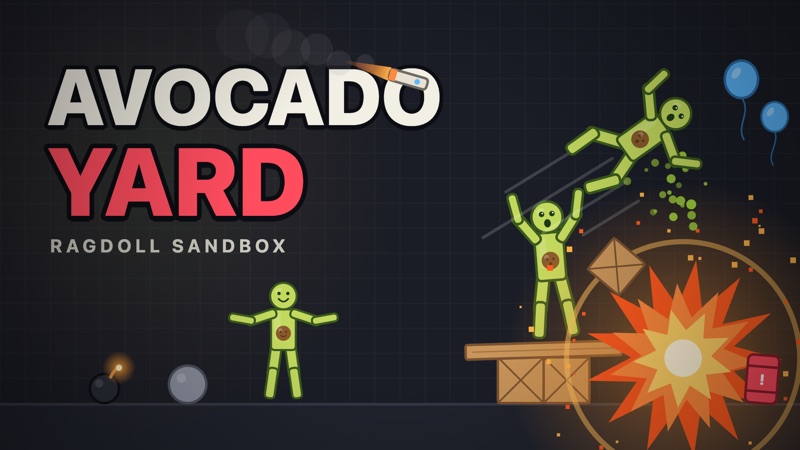
Place a toy, then grab it
Avocado Yard: Ragdoll Sandbox
Select an item, then click the field
Play loads a game hosted by Playgama that may show ads and use cookies.
Provided by Playgama. Ads and cookies may load only after you press Play. Read the Playgama Privacy and Cookie Policy.
Select Avocado from the left item shelf.
How to play
How to Play Avocado Yard: Ragdoll Sandbox
Learn the difference between creating an object and manipulating an existing one.
- 01
Open the player and read the opening Tap the avocado tutorial.
- 02
Choose Avocado from the item shelf on the left.
- 03
Click the highlighted point in the yard to create the character and watch it fall.
- 04
Follow the Grab lesson, or choose Grab from the tools when you want to move an existing object.
- 05
Press on the ragdoll’s body, drag it upward, and release while the pointer is moving.
- 06
Watch the body’s motion and the tutorial feedback before choosing another item or tool.
About the game
Select a toy, place it, then switch to Grab
Avocado Yard: Ragdoll Sandbox by DK Entertainment is a browser physics playground distributed through Playgama. The opening lesson separates two actions: choose an item and click the yard to create it, then use Grab to move a character that is already there. Use Play here to open the official player and follow the highlighted tutorial.
For the first placement, select Avocado in the item shelf on the left. The tutorial then says Now tap here to drop it and highlights a point in the field. Click that location to add a ragdoll. You are selecting an item and then choosing its position, rather than dragging the shelf button into the scene.
The next lesson highlights Grab and asks you to fling the character upward. Press on the ragdoll’s body, keep holding as you move it, and release while moving to throw. The flexible body bends and tumbles under physics. A successful opening throw produces Nice throw and advances the tutorial to its next lesson.
Controls
Controls for Avocado Yard: Ragdoll Sandbox
- Select an item, then click the field
- Create the selected object at the chosen position in Place mode.
- Grab: hold, drag, release
- Pick up an existing object and throw it by releasing during movement.
- Esc
- Publisher-listed shortcut for returning to Grab.
- Space / S / G
- Publisher-listed shortcuts for pause, slow motion, and gravity; corresponding controls appear in the top bar.
Useful strategy
Change one tool at a time
- Check whether an item or Grab is selected before clicking the yard.
- Place the first ragdoll in open space so its motion is easy to follow.
- Start a grab on the body itself, not on empty space next to it.
- Release during a moving drag when following the throw lesson.
- Let the result settle before adding several more objects.
- Read the live labels on optional tools and modes before opening rewards or replacing your scene.
Place mode uses two separate choices
The shelf chooses what you will create, while the field chooses where it will appear. In the opening tutorial, Avocado is highlighted near the lower part of the left panel. Select that button first, then follow the field highlight. A click on the shelf alone selects the toy; the next click in the yard actually adds it.
This distinction matters when you move beyond the first character. Choose another available item deliberately before placing it. If you keep the same item selected and click different parts of the field, you can create more copies rather than move the one already present. Look at the highlighted selection and the instruction along the bottom when the result differs from what you intended.
Begin with an open part of the yard and one new ragdoll. Watch it fall before adding another item directly on top. A simple scene makes it easier to recognize successful placement and to follow the body you plan to grab. Filling the view immediately creates many moving parts before you have learned the two basic modes.
Grab moves the object already in the scene
Grab is a tool, separate from the item shelf. The opening second lesson highlights its hand icon and points at a ragdoll in the field. Press on the body, hold through the drag, and move it away from its current position. The character can bend as you pull because its body is made to respond flexibly rather than remain a rigid upright figure.
Aim the initial press at a visible body part. If your pointer lands beside the ragdoll, you have not necessarily picked anything up. Check that the body follows your drag before treating a release as a throw. An existing character that has fallen toward the bottom needs to be grabbed at its current location, not where it first appeared.
If another click creates an extra avocado when you wanted to move one, return to Grab and try the existing body again. The publisher lists Esc as a shortcut for this tool, and the visible hand button provides a direct way to select it. Keep item selection and object manipulation separate in your plan: first create the subject, then choose how to interact with it.
Follow the motion through the release
The tutorial describes the second action as grabbing and flinging upward. Pull the body in a clear upward direction and release while the pointer is moving. A body held at a new point demonstrates a successful grab, but the throw lesson also expects you to let go. Follow the ragdoll after release to see how it turns and falls.
The Nice throw message is useful feedback for the opening lesson. It confirms that the tutorial recognized the action and moves you on to Step 3. You do not need to produce a particular score, height, or damage amount to understand the first throw. Learn the relationship between holding, moving, and releasing before attempting a complicated chain of interactions.
Try a small variation only after you understand one result. Change the direction of a later drag, or choose a different starting position, and compare what happens. Changing several tools and spawning many objects at once can be entertaining, but it makes a confusing input harder to diagnose. A clear first experiment gives you a reliable basis for a more elaborate scene.
Use the current lesson to choose your next experiment
The top bar includes Pause, Slow-mo, Gravity, Clear, Reset scene, Modes, Sound, and How to play. Find these before building something you want to keep. Read a control’s current label and prompt before using it, especially Clear or Reset scene, which relate to changing the setup you have made. Keep scene management separate from the Grab action itself.
The left tool panel also includes options such as Delete, Freeze, Rope, and Nail. The publisher describes these as ways to remove, lock, connect, or pin objects. Start with the specific tool you want to learn and inspect its live instruction. The opening place-and-throw sequence does not require using every tool or knowing every keyboard shortcut.
After the recognized throw, the tutorial asks you to pick a bomb. That is a new lesson, with a different interaction to read before acting. Other modes, challenges, items, and unlocks also have their own conditions. A tool marked with an Ad label, such as the displayed Minigun option, is an optional choice to inspect rather than a requirement for basic placement and grabbing.
Quick answers
Avocado Yard: Ragdoll Sandbox FAQ
Where can I play Avocado Yard by DK Entertainment?
Use Play on this page for the official Playgama browser player. The full title is Avocado Yard: Ragdoll Sandbox, and the source below identifies DK Entertainment as the developer.
How do I place my first character?
Select Avocado from the item shelf, then click the highlighted point in the yard. The opening tutorial separates selecting the toy from placing it in the field.
Should I drag the item button into the scene?
For the opening Place action, choose the item and then click the field. Dragging is used with Grab to manipulate an object that already exists in the scene.
How do I throw a ragdoll?
Choose Grab, press on the character’s body, drag upward, and release while moving. The opening lesson responds with Nice throw when it recognizes the action.
Why do clicks create more objects instead of moving one?
You may still have an item selected in Place mode. Switch to Grab with its hand button, then press on the existing body. The publisher also lists Esc for returning to Grab.
Can I play on a phone?
Playgama lists phone and tablet support. The basic touch sequence is select an item, tap the field, then use a held drag for Grab. Check how the shelf and field fit on your own device.
Game information
Game details
Avocado Yard: Ragdoll Sandbox is developed by DK Entertainment and distributed through the official Playgama player.
- Developer
- DK Entertainment
- Distributor and host
- Playgama
More about this game
Keep the break going