Ragdoll Robots: Sandbox
Pick an unlocked character from the palette and add it to a physics sandbox.
- Session
- Open-ended sandbox
- Controls
- Select a palette item
- Best for
- Casual
Landscape gives you more room

Place a robot in the scene
Ragdoll Robots: Sandbox
Select a palette item
Play loads a game hosted by Playgama that may show ads and use cookies.
Provided by Playgama. Ads and cookies may load only after you press Play. Read the Playgama Privacy and Cookie Policy.
Choose an unlocked character on the left.
How to play
How to Play Ragdoll Robots: Sandbox
Select an item from the left palette, then place it in the scene.
- 01
Start the player and wait for the palette and gray scene to appear.
- 02
Select an unlocked character tile; the opening red character is one visible choice.
- 03
Click or tap a clear location in the scene and confirm that the selected character appears there.
- 04
Try another category only after observing the result of the first placement.
About the game
Ragdoll Robots: Sandbox
Ragdoll Robots: Sandbox opens as a construction playground rather than a timed race. A broad gray scene fills most of the player. Along the left edge is a palette of characters, while tabs across the top show other kinds of items. You choose something from the palette and place it into the scene. The first useful achievement is simply making an object appear where you intended, then watching what it does.
Begin with the red robot-like character in the left palette. Selecting it gives the tile an outline; clicking an open place in the gray scene adds the character there. Look for the figure standing near the floor before choosing another tool. The selection outline and the placed figure are different states, so do not stop after merely highlighting the tile.
The game also offers machines, levers, and wires beyond the first character palette. Start with a simple placement and explore one category at a time. When you try a powered object, watch its response before adding another component. A sandbox becomes easier to understand when you can tell which selection caused each visible change.
Controls
Controls for Ragdoll Robots: Sandbox
- Click or tap a palette item
- Select the item you want to place.
- Click or tap the scene
- Place the selected item at the chosen point.
- Top category tabs
- Inspect characters, tools, and other available item groups.
Useful strategy
Build a readable experiment
- Place one item first so you can recognize its effect before adding more.
- Use open space rather than a crowded corner for the first placement.
- Notice which palette tile has the selection outline before clicking the scene.
- Treat save, restart, and disposal controls carefully; inspect their labels before changing a scene you want to keep.
Get oriented before placing anything
The left side of the opening view is a palette. It includes several colorful character tiles, with some later choices visibly locked. The main gray area is the workspace. A floor runs across the lower part of that workspace, giving placed objects a surface to land on. Across the upper edge are category icons; near the upper right are sound and scene-related controls. Understanding this layout prevents a common first mistake: clicking the workspace before choosing the item you mean to add.
Begin with the character palette already open. The first red character is easy to distinguish from the orange, yellow, green, blue, and other visible icons. Selecting that tile gives it an outline. At this stage, the character is not yet in the scene. Selection and placement are two separate actions; the outline tells you what a subsequent scene click is likely to place.
The scene itself has a lot of empty room. For your first placement, choose a point well away from the palette and the right-side controls. A clear location lets you see the resulting character against the grid and floor. If a click seems to do nothing, first ask whether you clicked a palette tile, an overlay control, or the actual scene. The target area matters more than clicking repeatedly.
Place one character and confirm it appears
The opening sequence is direct: select the red character at the left, then click the central scene. The figure appears in the workspace with its feet near the floor, visibly separate from the palette icon. This two-step select-and-place pattern is the first useful control to learn; it lets you choose a deliberate location instead of filling the scene with accidental clicks.
After placement, pause for a moment. Look for the character in the scene rather than assuming that any highlight or sound means it was added. If you selected the item but see no new figure, the placement click may have landed outside the active workspace or the scene may still be loading. Recheck the visible scene once before attempting another placement.
Avoid filling the room immediately. One placed object gives you a clean baseline. You can then select a second item, place it at a deliberate distance, and compare the result. If several objects are added in quick succession, it becomes harder to tell which one moved, collided, or responded to a tool. The game is an experiment space; controlled comparisons are more useful than an instant pile.
Use the categories as an experiment menu
The top row shows distinct icon tabs, including a face, a weapon-shaped icon, a grenade-shaped icon, and a tools or machinery icon. These tabs signal that the palette can show different kinds of items. Start with character placement to learn the common interaction. When you change tabs, inspect the newly visible palette before clicking the scene again; the selected object may now be completely different.
The official description mentions equipment, doors, conveyors, rocket silos, fireworks, and wiring or lever interactions. Treat those as ideas to inspect in the live build, not as a guaranteed outcome from a single tap. If you want to test a mechanism, place its parts in open space and try one change at a time. Watch for a visible response before adding another component.
Some palette choices show padlocks or level labels. Do not assume they are immediately available. Choose an unlocked visible item for a first experiment, then read what progression the game asks for if you want a locked choice. A small counter sits at the upper right; check its label or the game instructions before treating it as a score, a resource balance, or a completion target.
Make small scenes easier to understand
A simple scene can answer a specific question: where does a chosen character land, does it stand on the floor, and what happens when another object is added nearby? Put the first item in a clear area. Add one more only when you know what you want to compare. Space is useful here because the grid gives you a visual reference for placement and later motion.
If you are interested in collisions, keep the two items close enough to observe together but not directly on top of one another at the start. If you are interested in a machine, isolate it from unrelated items. The aim is not to optimize a hidden score; it is to make the cause and result visible. This also makes it easier to notice when a selected tool has the wrong effect or an object behaves differently from its icon.
The workspace supports playful trial and error, but deliberate pacing improves it. Select, place, watch, then decide. When a result surprises you, take note of the last item you added and where you placed it. You can repeat a comparable setup later if the interface offers a reset. That is more informative than changing several categories while a scene is still moving.
Recover from a confusing scene
If the left panel obscures part of the scene, keep your first placements farther right. If an object appears where you did not expect, check the pointer position and the selected tile before placing another. A small accidental offset is easier to learn from than a scene filled with repeated misclicks. On a touch display, aim inside the central gray workspace rather than on the edge of the panel.
Visible interface icons include a circular-arrow style control, a disk icon, and a trash symbol near the palette. Read any label or confirmation before using one, especially if you have arranged something you want to keep. These symbols suggest scene management, but their exact effect may depend on the current screen. Do not assume that a guest session preserves a creation across devices.
A locked icon is not a broken tap. A chosen tile that highlights without placing is also a different state from an object already appearing in the scene. Diagnose the step that failed: availability, selection, target location, or loading. This short checklist is more reliable than repeatedly clicking a toolbar and hoping a result appears.
A useful first-session routine
Open the player and wait until the workspace and palette are both visible. Identify one unlocked character, click it once, and look for the selection outline. Choose an open point above the floor and click there. Confirm that a matching figure appears in the scene. This is enough to learn the core input loop before exploring a weapon or machine category.
Next, choose a question for the experiment. You might inspect how a second character shares the same floor, or switch to another category to see what objects it offers. Add only one item at a time and watch the visible change. If you want to compare two setups, keep their placements separated. A sandbox rewards curiosity, but observation is what turns a random click into a useful discovery.
The related games below offer different forms of physics play. One asks you to remove supporting blocks to guide a sheep; another emphasizes a large physical impact. Their goals are distinct from this freeform scene. Here, your first success is not a victory screen. It is choosing an item, placing it intentionally, and understanding what appeared before you build something more elaborate.
Quick answers
Ragdoll Robots: Sandbox FAQ
How do I add a character?
Select an unlocked character in the left palette and then click or tap an open place in the gray scene. The opening red character appeared after that sequence.
Is there a fixed level goal?
The opening scene lets you place items freely. A small counter is also visible; read its in-game explanation before treating it as a completion target.
Can I use a locked palette item immediately?
Start with an unlocked visible choice. A padlock or level label signals that another choice may require progression.
Game information
Game details
Ragdoll Robots: Sandbox runs in the official Playgama player, which may use cookies or show advertising.
- Developer
- Miraculum Games (Rusin Games)
- Distributor and host
- Playgama
More about this game
Keep the break going
Similar games

Clear the path to the nest
Drop The Sheep
Pop supporting blocks in a safe order so the sheep lands in the hay nest below.
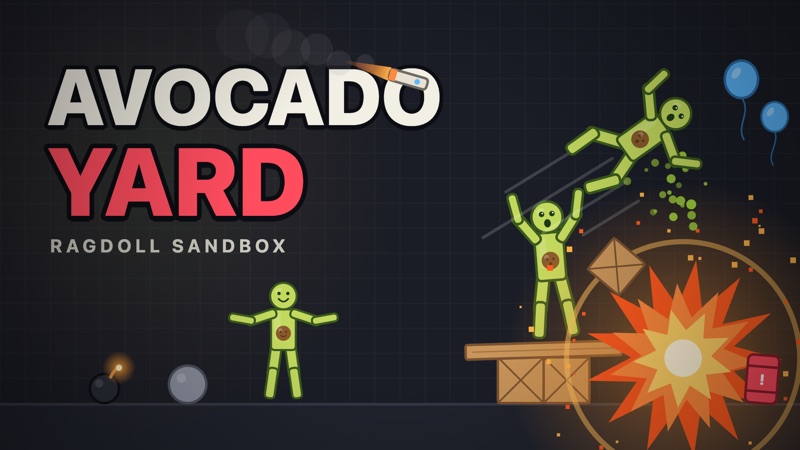
Place a toy, then grab it
Avocado Yard: Ragdoll Sandbox
Select Avocado, click the yard to place a ragdoll, then use Grab to move and throw its flexible body.