Relaxing Games: 30 in 1
Pick an illustrated activity, interact with its object, and use the back arrow to choose another.
- Session
- Short play sessions
- Controls
- Click an activity tile
- Best for
- Relaxed
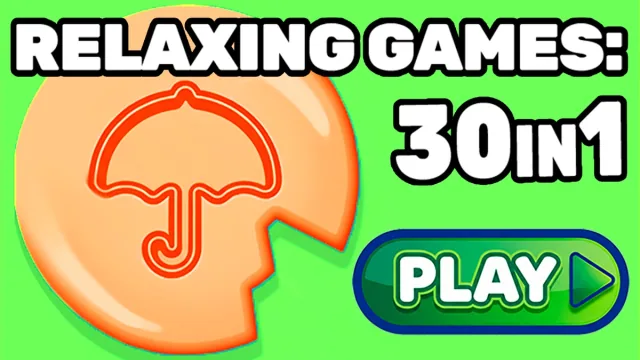
Choose a small hands-on break
Relaxing Games: 30 in 1
Click an activity tile
Play loads a game hosted by Playgama that may show ads and use cookies.
Provided by Playgama. Ads and cookies may load only after you press Play. Read the Playgama Privacy and Cookie Policy.
Choose a pictured activity from the grid.
How to play
How to Play Relaxing Games: 30 in 1
Read the current prompt, make one deliberate input, and check the result.
- 01
Open the player and wait for the activity-selection grid. The checked desktop view showed three columns of illustrated tiles, with fifteen tiles visible at once and a speaker icon above them.
- 02
For a simple first action, choose the switch picture at the upper left. The activity displays a hanging bulb and an orange rocker switch marked 1 and 0.
- 03
Click the rocker switch. In the desktop check, it flipped position, the bulb glowed yellow, and the background became lighter. Those visible changes confirm the interaction.
- 04
Use the green back arrow at the upper left of the activity area to return to the selection grid. This was checked after the switch action.
- 05
Choose the cucumber-and-knife tile, shown in the left column of the second visible row. Inspect the knife and cucumber before deciding what to move.
- 06
Hold the left mouse button on the knife and drag it downward toward the cucumber, then release. A separate slice appeared below the main piece in the checked interaction. That proves a cutting response, not a full activity-completion trigger.
About the game
Choose a small activity and watch the object respond
Relaxing Games: 30 in 1 is MaxDev.app’s collection of short interactive activities, distributed through Playgama. Select Play to open this edition, then choose a pictured activity from the selection grid. A desktop check verified two different kinds of interaction: clicking a wall switch lit a hanging bulb, and dragging the knife in the cucumber scene produced a separate falling slice. Start with these visible responses rather than looking for a conventional race or combat objective.
The collection’s title describes thirty mini-games. We did not play through all thirty or establish a completion rule for each one. This guide gives a practical route into the menu and two checked activities, explains the difference between clicking and dragging, and shows how to return when you want another activity. The developer credit and official source link distinguish this collection from unrelated relaxing-game compilations.
Playgama presents the collection as a low-pressure way to take a break and says you can move on from an activity that does not interest you. That description is not a medical claim or a guarantee that every activity behaves identically. Pick something you want to interact with, make one clear input, and inspect the result. There is no need to invent a global score or a compulsory completion order to enjoy the two activities covered here.
Controls
Controls for Relaxing Games: 30 in 1
- Click a picture tile
- Open that activity from the observed selection grid.
- Click the wall switch
- Change its position and the bulb’s visible state in the checked light-switch scene.
- Hold and drag the knife
- A downward mouse drag produced a detached cucumber slice on desktop.
- Green back arrow
- Return from the checked switch scene to the activity grid.
- Touch input
- Playgama lists mobile platforms; physical-phone tapping and dragging have not been checked here.
Useful strategy
Make your next action easier to read
- Use the picture on a tile to identify the activity; a small icon may communicate more than a text label.
- Look for a state change after clicking. In the switch scene, the bulb, rocker, and background all gave feedback.
- When a brief click does not manipulate an object, consider whether the activity is asking for a held drag instead.
- Release a drag before inspecting its result, so your next action starts from a clear state.
- Return to the selection grid when you want a different task. Closing the entire hosted player is a separate action from the game’s back arrow.
Find a task in the picture grid
The checked menu uses three columns of square illustrations. Visible examples included a wall switch, bottles, cucumber slicing, a watermelon slice, a television, a sheep, a hair dryer, a shirt, a balloon, and a small tower. Their presence is a menu observation, not proof that every illustrated activity was played. The switch and cucumber pictures are the two useful landmarks for following this guide.
The initial viewport did not show all thirty activities at the same time. Do not assume that the fifteen visible tiles are the entire collection, and do not use this screenshot order as a permanent numbered walkthrough. A different window shape or a later build may arrange the pictures differently. Match the actual object shown on the tile rather than memorizing a screen coordinate.
If you want a short break, choose one object whose response you understand. A switch offers an easy click-and-feedback comparison; a cutting scene introduces a held movement. Changing activities gives you a different interaction without requiring a claim that the previous one was completed. This is a suggested starting route, not an official unlock sequence or a ranking of all the mini-games.
Try the light-switch activity
After selecting the switch tile, the observed scene showed an unlit bulb hanging from a cord and a wall-mounted rocker marked 1 and 0. The green back arrow remained near the top left, while a red double-arrow control was visible near the top right. The large switch is the task object; the navigation arrows serve different purposes and should not be confused with its clickable area.
Clicking the orange rocker changed its angle. The bulb became yellow and luminous, and the surrounding background lightened. Those three changes provide a clear indication that the input reached the game. You do not need to infer success from a loading message or from the fact that the activity opened. The object itself visibly responded to the mouse click.
That response does not establish a hidden score, an achievement, a required number of toggles, or an automatic transition to another activity. None was verified in this check. If your goal is simply to interact with the light, the visible state change is enough feedback to understand the control. Use the green back arrow when you want the selection grid again, rather than waiting for an unverified victory screen.
Use a drag in the cucumber scene
The cucumber activity displays a gray knife above a round green cucumber cross-section on a pink background. Clicking the cucumber did not produce an immediately confirmed cut during the check. A later normal mouse action started on the knife, held the left button while moving downward, and released near the cucumber. A separate flattened slice then appeared below the main piece.
This is the useful distinction from the switch: a quick click changes the switch state, while moving the cutting tool requires a held gesture. Start on the tool you intend to manipulate, keep the button held during the movement, and release before checking for a detached slice. Repeatedly clicking the cucumber without inspecting the knife gives you less information about what the scene expects.
The detached slice establishes a cutting interaction, but it does not reveal every completion condition. We did not verify how many slices finish the activity, whether it advances automatically, or what the red double-arrow control does. Follow the current scene’s feedback and use the available back route when you want another choice. Reloading the whole player is unnecessary just to compare these two activities, and persistent progress across reloads has not been tested.
Quick answers
Relaxing Games: 30 in 1 FAQ
Where can I play the exact MaxDev.app collection?
Play on this page opens its authorized Playgama player, and the source panel links Relaxing Games: 30 in 1 by MaxDev.app. Use that developer identity and exact source link when comparing similarly named compilations. The checked picture grid, switch scene, and cucumber scene belong to the edition covered here.
Why does clicking the cucumber seem ineffective?
A brief click did not produce a confirmed cut in the desktop check. Holding the mouse button on the knife and dragging downward produced a separate slice. This is a checked example of a drag interaction, not a guarantee that the same gesture controls every other activity in the collection.
Do I need to complete every activity in order?
Playgama describes choosing activities and moving on from ones you do not want to continue. We verified opening two activities and returning from the switch to the grid. We did not verify all thirty completion rules, progression, unlock behavior, or the visible red double-arrow control.
Is this ad-free, therapeutic, or verified on a real phone?
No such claims are made here. A distributor preroll was observed, and no medical benefit was tested or promised. The gameplay check used normal desktop mouse input in a browser. Mobile support is listed by Playgama, while physical-phone behavior and saved progress remain unverified.
Game information
Game details
This independently written guide combines the official listing with the desktop actions described above. The game runs through Playgama and may show its own ads and use cookies.
- Developer
- MaxDev.app
- Distributor and host
- Playgama
More about this game
Keep the break going
Similar games
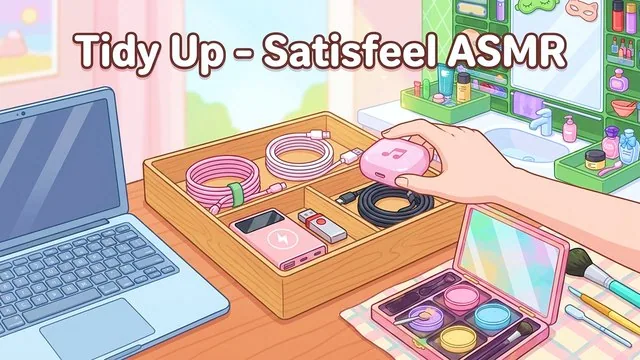
Place the first flowerpot
Tidy Up - Satisfeel ASMR
Drag objects into order, inspect the opening plant-shelf placement and watch the countdown shown in Level 1.
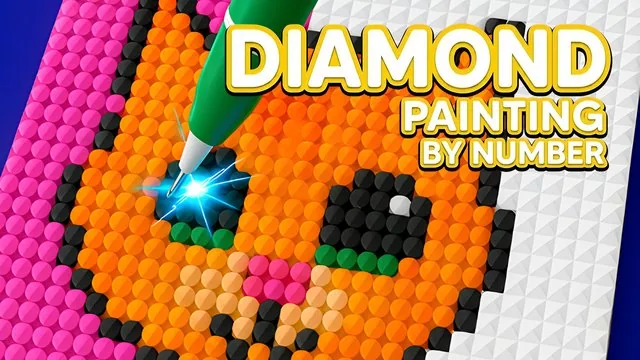
Place a little sparkle
Diamond Painting by Number
Open the heart drawing, match numbered colors, and hold and drag to place sparkling diamonds.