Planet Blast: Rockets
Drag the planet to aim, press LAUNCH, then learn the opening fuel and ammo sliders.
- Session
- Short play sessions
- Controls
- Drag the globe to aim
- Best for
- Quick
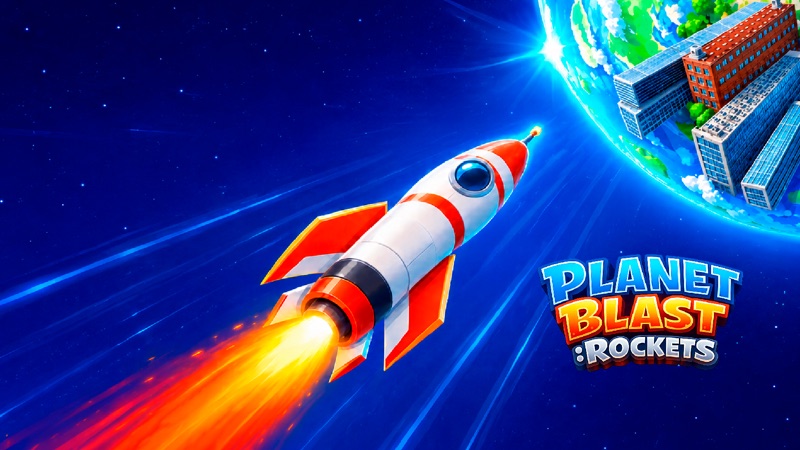
Aim, prepare, launch
Planet Blast: Rockets
Drag the globe to aim
Play loads a game hosted by Playgama that may show ads and use cookies.
Provided by Playgama. Ads and cookies may load only after you press Play. Read the Playgama Privacy and Cookie Policy.
Click TAP TO START and inspect the central crosshair.
How to play
How to Play Planet Blast: Rockets
Follow the first launch, then learn the two highlighted preparation sliders.
- 01
Open the hosted player, wait for its start screen, and click TAP TO START.
- 02
On Planet 1, drag the globe with the left mouse button to put your intended location under the central crosshair.
- 03
Release the drag and click the red LAUNCH button. Watch the flight and the subsequent screen rather than expecting a drag release to fire.
- 04
When DRAG THE SLIDER TO POWER UP appears, drag the highlighted FUEL or AMMO slider and watch its number change.
- 05
Choose AIM to return to the globe. Recheck the target after changing the rocket, then click LAUNCH again.
- 06
Read the resulting cash and displayed distance or radius before deciding what to change on the next attempt.
About the game
Aim at a planet, then fire with LAUNCH
Planet Blast: Rockets by Prime Web Publish is a browser rocket game about choosing a target on a small world and watching the strike. Use Play to open its official Playgama player here. The opening begins with TAP TO START, followed by Planet 1 and an aiming view. Drag the globe to change the point under the central crosshair, then click the separate red LAUNCH button. Releasing a drag by itself is not the firing step.
After the opening flight, the game introduces the rocket preparation screen. FUEL is paired with DISTANCE, while AMMO is paired with RADIUS. Move the highlighted slider when the tutorial asks you to power up, then use AIM to return to the planet. These labels help distinguish reaching a location from affecting the area around it. Start by following the visible lesson rather than looking for a complex build menu before the first shot.
This guide covers the Prime Web Publish game distributed through Playgama. Its useful beginner loop is preparation, aiming, launching, and reading the result. Later upgrades and other planets belong to the longer progression; you can understand the basic controls before spending time on those choices.
Controls
Controls for Planet Blast: Rockets
- Left mouse drag on the globe
- Rotate the aiming view and choose the location under the crosshair.
- Click LAUNCH
- Fire the prepared rocket from the aiming screen.
- Drag a highlighted slider
- Change the visible FUEL or AMMO setting during preparation.
- Click AIM
- Return from preparation to the planet targeting view.
Useful strategy
Separate preparation from the firing decision
- Let the first tutorial finish its current instruction before searching for later upgrades.
- Use short globe drags so you can recognize which location has moved under the crosshair.
- Read the label beside a slider before changing it: FUEL/DISTANCE and AMMO/RADIUS describe different parts of the shot.
- Return to AIM after a change and inspect the target again. A new setting does not confirm the location you intend to hit.
- Treat one cash increase as feedback from that shot, not a guaranteed payout for every launch.
- Leave video-marked offers alone when you only want to learn the basic launch controls.
Use the crosshair rather than a remembered screen position
The globe is the object you rotate, and the central crosshair is your reference point. When you drag, land, water, buildings, and other features move around that reference. Release the mouse when the intended area reaches it. A location that was on the right side before the drag may end up near the center afterward, so judge the final view rather than the direction of your hand movement.
Begin with a visible feature you can recognize after rotation. This gives you a way to compare the target before and after the shot. An identifiable cluster is easier to learn from than an arbitrary patch of blue or green. You are learning the relationship between your aiming action and the result, so clarity matters more than choosing a supposedly perfect location on your first attempt.
Check the whole scene once the globe stops moving. If you have overshot, make a smaller corrective drag instead of launching while uncertain. The red button gives you a separate moment to commit. Use that pause to confirm the crosshair and the area around it, then fire deliberately.
Read FUEL/DISTANCE and AMMO/RADIUS as separate settings
The opening preparation lessons highlight a slider and ask you to power up. Drag its circular handle along the horizontal track, then read the changed number. The tutorial can reveal additional controls as you progress, so a preparation screen with only one lesson visible does not mean that the entire game has only one adjustable setting.
FUEL appears with DISTANCE, and AMMO appears with RADIUS. Keep those pairs together in your notes. If you change one slider and then look at the result, you can ask whether the location reached or the affected area changed. Avoid mixing both settings at once while learning, because that makes it harder to tell which adjustment contributed to what you saw.
A tutorial setting is a starting point for understanding the interface, not proof of an optimal build. The live screen determines which values are available at your current progression. Follow its highlighted instruction and use AIM when offered. There is no need to assume a hidden mass slider or copy a numerical recipe from another rocket game.
Compare a completed shot with the next preparation screen
A launch has an animation phase before the next useful decision. Let the scene resolve so you can read the game’s feedback. The opening flight offers a TAP TO SKIP THE FLIGHT prompt, but skipping an animation is different from adjusting a rocket or firing another one. Keep those actions separate when you are learning the sequence.
On the preparation screen, cash and the displayed distance or radius provide different kinds of information. A cash increase is an outcome of the completed action; a distance or radius label describes the current result or capability shown by the game. Neither tells you by itself that a particular setting is best for every target. Compare several clear attempts before drawing a strong conclusion.
Change one thing for the next launch: a target, a fuel setting, or an ammo setting. Keep the other choices familiar. This turns a series of shots into a useful comparison rather than random experimentation. Your immediate goal is to understand what the interface does, then choose a more deliberate next strike.
Distinguish a waiting instruction from a frozen game
A still scene may be waiting for a specific action. Read the instruction before reloading. TAP TO START asks you to enter the game; DRAG THE SLIDER TO POWER UP asks for a slider movement; AIM returns you to targeting; LAUNCH fires from the globe view. Clicking an unrelated part of the screen will not necessarily satisfy the current lesson.
If a Click to keep playing message appears after you leave the player, use that visible prompt to resume. Then click inside the game and continue its instruction. On desktop, keep the pointer over the control you intend to use and release the mouse between actions. This prevents a long drag from being confused with your next click.
If the hosted player has not loaded at all, use the site’s player retry control after checking your connection. A player reload and an in-game launch are separate actions. Avoid repeatedly reopening the game simply to chase a different ad or a different starting result; first identify whether the player is loading, paused, or waiting for its tutorial.
Quick answers
Planet Blast: Rockets FAQ
Where can I play the exact Planet Blast: Rockets?
Use Play above for the official Playgama-hosted game by Prime Web Publish. The source link identifies the same developer and title, which helps distinguish it from other space and rocket games.
Do I release a drag to launch the rocket?
Use a drag to aim the globe, release it, and then click the separate red LAUNCH button. AIM takes you back to targeting from the preparation screen; it does not fire the rocket.
Why has the fuel slider appeared after my first flight?
The opening introduces preparation through a highlighted lesson. Follow DRAG THE SLIDER TO POWER UP, read FUEL/DISTANCE, and use AIM when available. The AMMO/RADIUS lesson appears later in the opening sequence.
Is there a guaranteed cash reward or best starting slider value?
A single launch result does not establish a guaranteed reward or a best build. Read the current values and change one choice at a time while comparing shots. Different targets and progression can change the useful decision.
Can I use touch controls?
The publisher lists mobile browser support with taps and finger gestures. Follow the live touch interface on your device; the desktop instructions here explain the visible aiming and preparation sequence without promising identical placement on every screen.
Game information
Game details
Planet Blast: Rockets is developed by Prime Web Publish and distributed through the official Playgama player.
- Developer
- Prime Web Publish
- Distributor and host
- Playgama
More about this game
Keep the break going