My Dogy Virtual Pet
Drag kitchen food to Dogy, watch the food indicator, and explore the care rooms at your own pace.
- Session
- Short play sessions
- Controls
- Drag food to the puppy’s mouth
- Best for
- Management
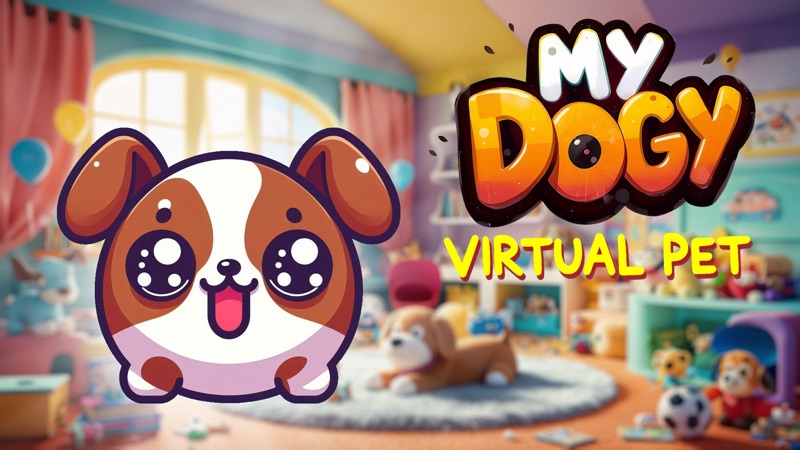
Care for your puppy
My Dogy Virtual Pet
Drag food to the puppy’s mouth
Play loads a game hosted by Playgama that may show ads and use cookies.
Provided by Playgama. Ads and cookies may load only after you press Play. Read the Playgama Privacy and Cookie Policy.
Find Dogy and the food in the kitchen.
How to play
How to Play My Dogy Virtual Pet
Learn a single care action by comparing the screen before and after it.
- 01
Choose Play and continue through the hosted game’s own play button.
- 02
Read the welcome message, then locate Dogy, the room arrows, and the bottom food item.
- 03
Find the brown food symbol in the top status panel before feeding.
- 04
Hold the mouse on the kitchen bread, move it up to Dogy’s mouth, and release.
- 05
Watch the eating effect and compare the food indicator with its previous fill.
- 06
Use the room arrows when you are ready to explore another care activity, reading that room before using its objects.
- 07
Check the current need and available activity instead of using the shop or coin-plus button as a shortcut.
About the game
Drag food to Dogy and watch the feeding response
My Dogy Virtual Pet is a puppy-care game by Renato Duchini, also identified as Onduck Games, and distributed through Playgama. Use Play here to open the official player. The opening kitchen places a brown-and-white puppy in the middle, room arrows on either side, and a food item near the bottom. To feed him, drag the bread upward to his mouth and release it.
Look for the result on the puppy and in the top panel. Eating particles and a small +1 appear during a successful interaction, while the brown food indicator gains fill. That gives you a clearer check than repeatedly clicking the puppy. The nearby star and coin counters are separate displays; a +1 floating over Dogy should not automatically be read as one coin.
The broader care loop includes food, washing, play, and rest. The publisher describes moving between rooms to respond to different needs. Start with the kitchen so that you learn one complete action before exploring the rest of the house. This is the specific My Dogy Virtual Pet from Onduck Games, rather than a general guide to every browser dog simulator.
Controls
Controls for My Dogy Virtual Pet
- Mouse drag
- Carry the kitchen food upward to the puppy’s mouth.
- Mouse click
- Select visible room arrows and ordinary game controls.
- Touch
- Publisher-listed mobile input for interacting with the puppy and objects.
- Speaker icon
- Locate the sound control at the lower left of the care screen.
Useful strategy
Read the care response before choosing the next activity
- Aim the food at the mouth rather than an empty part of the kitchen.
- Compare the food indicator after the animation has had a moment to settle.
- Keep the star, needs, and coins visually separate when reading the top panel.
- Explore one room at a time so that you can connect each object with its effect.
- Read the number on a locked mini-game before trying to enter it.
- Avoid opening an optional reward or purchase prompt when you only want to practice basic care.
Give the food to the puppy, rather than just selecting it
The kitchen food sits below Dogy, close to the bottom edge of the central room. The puppy is much higher on the screen. On desktop, make a deliberate drag between those two places: press on the bread, keep the button held while moving to the mouth, and release there. A short click on an unrelated part of the room does not explain which care action you intended.
Once the food reaches Dogy, leave a moment to see the eating effect. Small particles around the face and the floating +1 are useful immediate feedback. Then inspect the brown food indicator in the top bar. Its increased fill connects the action with hunger, which is more helpful than assuming any cheerful facial expression means every need is satisfied.
If you are unsure whether a drag worked, stop and compare the display before doing it again. Make sure the drag began on the food and ended at the puppy, rather than starting on the arrow beside it. Repeated fast clicks can make the screen harder to read. A slow first interaction helps you identify the target and the result for later visits.
Needs, stars, and coins tell different stories
The top panel contains several different symbols. The opening care screen shows a star with a number, a green battery-like indicator, a brown food symbol, a red heart, and a coin total with a plus control nearby. These displays are close together, but they should not be treated as one score. Learn which one responds to the action you are currently performing.
Feeding gives a useful first example: watch the food symbol, not just the coin number. The eating effect can display +1 while the coin total stays unchanged. That is a reason to read the counters separately, rather than a promise about an experience or currency formula. Do not plan purchases around the assumption that each bread delivery must earn money.
The welcome message encourages watching your pet’s stats, playing games, meeting friends, and collecting coins to unlock features. Use those as broad directions for exploration. The exact effect of the heart, the rate at which each need changes, and the way star progress is calculated are not explained by the first feeding action. Read the game’s current activity prompts before making those connections.
Change rooms with a purpose
Large left and right arrows sit beside the central room. They let you browse the care spaces without needing movement keys. Before leaving the kitchen, identify what you want to do next: find washing, look for a rest activity, or explore play. That makes room changes easier to follow than clicking through several screens and losing track of where an object belongs.
Playgama describes food, bathing, playing, and resting as the main care activities. A room can provide a different interaction from the kitchen drag, so look at its visible objects and instructions first. Do not assume that every icon is another food type or that clicking anywhere on Dogy performs the right action. Match the activity to the need you are trying to address.
Small brown droppings can appear on the kitchen floor during play. Their presence is a visual part of caring for the puppy, but it does not identify the cleaning action by itself. Look for the relevant tool or prompt in the live game. Feeding again is not a general solution for every untidy room or every changing status symbol.
Browse mini-games without assuming everything is unlocked
The right-hand panel lists mini-games including Racing, Runner, Jump, Flappy, Catch, Jetpack, Stack, and Fall. A Best Score display sits above them. Some pictures are open choices and others have a lock with a star number. Read that individual picture before selecting it. A menu showing a game is not the same as permission to play every option immediately.
The opening panel shows locked examples with star numbers such as 5, 10, 20, 35, and 50. Use the number displayed in your own session as the relevant requirement; menus can change as progress changes. The star in the top bar is a useful display to keep in view, but the kitchen feeding example does not establish a universal number of feeds needed for each unlock.
Keep optional progression separate from the basic care lesson. The Shop button, winged coin symbol, and coin-plus control are visible, but you can learn the first feeding drag without opening them. If a later choice offers an advertisement, currency purchase, or another condition, read it before continuing. A care game being free to start does not make every optional prompt an unlimited free reward.
Finish a useful visit without rushing the house
A practical first visit has a small goal: find the food, feed Dogy once, recognize the response, and identify how to change rooms. You can then decide whether to explore a care space or a mini-game. Learning that short loop gives you a repeatable starting point instead of trying to understand the whole shop and every locked activity at once.
Playgama lists desktop, Android, and iOS support. On a phone, allow enough room for the central puppy and bottom food target, and use the game’s current touch instructions. A mouse drag on desktop does not guarantee identical comfort on every small screen. Likewise, do not rely on closing the outer player to pause care or preserve a particular session; check the current game’s own options before leaving.
Quick answers
My Dogy Virtual Pet FAQ
Where can I play the exact My Dogy Virtual Pet?
Use Play here for the official Playgama player. The developer is Renato Duchini (Onduck Games). The official source below helps distinguish it from other virtual puppy games.
How do I feed Dogy in the kitchen?
On desktop, drag the bread from the bottom of the kitchen up to Dogy’s mouth and release. Watch the eating effect and the brown food indicator rather than repeatedly clicking the puppy.
Does the floating +1 mean I earned a coin?
Do not assume so. The feeding interaction can show +1 while the coin total stays unchanged. Check the separate coin counter and the current activity’s explanation.
How do I move to another care room?
Use the large arrows on either side of the central room. Read the new room’s objects and prompts before assuming that it uses the same interaction as kitchen feeding.
Why are some mini-games locked?
The mini-game pictures can display locks and star-number requirements. Read the number on the activity you want. This guide does not promise a fixed feeding-to-unlock formula.
Will progress carry over to another device?
A platform save prompt does not by itself establish cross-device restoration for this game. Check the current game and account options before depending on a resumed pet session.
Game information
Game details
My Dogy Virtual Pet is developed by Renato Duchini (Onduck Games) and distributed through the official Playgama player.
- Developer
- Renato Duchini (Onduck Games)
- Distributor and host
- Playgama
More about this game
Keep the break going