Elemental DressUp Magic
Choose a character, change an eye or hair option, and confirm to continue designing.
- Session
- Flexible short sessions
- Controls
- Click or tap a character portrait
- Best for
- Casual
Landscape gives you more room

Preview and confirm a look
Elemental DressUp Magic
Click or tap a character portrait
Play loads a game hosted by GamePix that may show ads and use cookies.
Provided by GamePix. Ads and cookies may load only after you press Play. Read the GamePix Privacy and Cookie Policy.
Choose a character portrait.
How to play
How to Play Elemental DressUp Magic
Choose an available portrait, preview an option, then confirm it.
- 01
Start the player and select the colored character portrait shown in the opening choice.
- 02
Click one visible eye option and compare the character before and after.
- 03
When the check mark activates, press it to continue.
- 04
On the next visible category, choose a hairstyle and inspect the preview before confirming.
About the game
Elemental DressUp Magic
Elemental DressUp Magic begins with a character choice and leads into a visual editor. In the observed opening, two portraits were visible; the left portrait was colored and the right appeared gray. Choosing the available left character opened an eye-option screen. Clicking a gray-eye option changed the character's eyes from amber to gray, and the check mark became active. Confirming moved to another character-choice screen and then a hair-option screen, where selecting a bun style visibly changed the character's hair.
That is the verified play loop: choose an available character, preview an appearance option, and confirm a change before moving forward. The game may contain more categories later, but the test did not verify their order or a final scoring result. Use the on-screen character as the preview, and let the active check mark tell you when an option can be confirmed. The value here is experimentation with combinations, not a timed high-score strategy.
For a first design, make one clear change at a time. Start with the option you can see, compare the before-and-after face or hair, then press the check mark only when you like the result. If the next screen changes character or category, orient yourself again rather than assuming the same controls stayed active. This avoids confusing a visual preview with a committed choice.
Controls
Controls for Elemental DressUp Magic
- Click or tap a character portrait
- Choose that character when the portrait is available.
- Click or tap an appearance option
- Preview the selected eyes or hair on the character.
- Click or tap the check mark
- Confirm the current visible choice and move to the next screen.
Useful strategy
Play with a clear next move
- Judge an option on the full character preview, not the small thumbnail alone.
- Change one item at a time so you know which choice created the new look.
- Use the check mark only after the preview matches your intention.
- Re-read the category after every confirmation; the editor may move to a different choice.
Understand the opening choice
The observed start screen offered two character portraits. The left appeared in color, while the right was gray. The test selected the colored left portrait and reached the editor. This proves that one path was available; it does not establish whether the gray portrait was locked, temporarily inactive, or simply displayed differently. Follow the current screen's availability cues rather than assuming every portrait responds the same way.
Character selection is a meaningful first step because later appearance options are shown on the chosen figure. Look at the portrait and the larger preview to know whom you are styling. If the screen changes after a confirmation, check whether you are continuing with the same character or being asked to choose again. The observed run encountered another selection screen after confirming eyes.
Do not rush past this screen expecting a numbered level or score. The tested interaction centered on visual customization. A sensible first goal is simply to select a character and make one visible alteration. That gives you a clear way to tell the game is responding: the character's appearance actually changes, rather than only a button becoming highlighted.
Preview eye options before confirming
The first observed editor category presented eye choices. The tested character initially had amber eyes; clicking a gray-eye option changed the visible eyes to gray. The large character preview is the decisive evidence of the choice. The small option icon helps you select, but its appearance alone cannot tell you exactly how the color or expression works on the full face.
Compare the eye choice with nearby details such as hair color, clothing tones, and the elemental backdrop. A cool gray can feel different from a warm amber even if the rest of the character is unchanged. This is a creative decision, so there is no verified correct answer. The useful action is to notice the contrast and decide whether it supports the look you want.
After the eye change, the check mark became active in the observed session. Treat that as an invitation to commit the visible choice, not proof that every option has been explored. If you want another eye, click its thumbnail and inspect the updated preview first. Then confirm the one you prefer. This order keeps the final selection intentional rather than accidental.
Read the check mark as a transition
In the tested sequence, pressing the active check after changing the eyes advanced the game to another character-selection screen. That is a clear transition: the appearance edit was accepted and the workflow moved on. A check mark that is inactive before a change may be telling you to make a selection first; its current appearance is more useful than repeatedly pressing it.
Pause after every confirmation. The next screen may show a new character, a new category, or a different set of thumbnails. The observed path later presented hair options, but this guide does not claim that every player sees the same sequence under all conditions. Read the heading, portraits, and thumbnails you actually see before choosing again.
If the screen does not advance immediately, wait for the transition animation to settle and inspect the check state. Avoid double-clicking while the app is changing views. A second press could affect the next screen if it lands after the transition. One choice, one preview, one confirmation, and one orientation pause is a reliable rhythm for this kind of editor.
Compare hairstyles on the character
The observed hair page showed at least two styles, including loose waves and a bun arrangement. Clicking the lower bun option changed the character's hair visibly from loose waves to buns; the check mark then activated. This verifies a hairstyle-selection action. It does not establish a final outfit, score, or export feature beyond the screens tested.
Hairstyles change the silhouette of the character more than the tiny selection tile may suggest. Look at the top and sides of the full preview: how much hair frames the face, whether the ears or accessories remain visible, and how the shape balances the background. A style that looks simple in the option row may have a stronger effect on the large figure.
Try to keep the choice connected to the look you built earlier. If you chose cool eyes, a tidy bun may create a different mood from loose waves. That is a design comparison rather than a game rule. The editor's value is the immediate feedback: you can inspect the visible result and confirm what you prefer. Do not assume the thumbnail alone captures every detail.
Recover from an unexpected choice
If an option seems to do nothing, first inspect the large character rather than clicking several thumbnails rapidly. A subtle eye change may be easier to see when you compare iris color; a hair change may affect the top silhouette. Make sure you clicked an active option and that the editor is not still on the previous selection screen. Then try one different thumbnail and compare again.
If the check mark remains inactive, the game may require an option to be selected or a transition to complete. The observed session showed it activate after both the eye change and the bun selection. Use that visible state as feedback. This guide does not infer hidden requirements from a gray button; simply make a clear visible choice and wait for the interface to update.
If you intended to style one character but see another portrait screen after confirmation, stop and orient. The observed sequence did exactly that between eye and hair screens. Choose the character you intend to continue with based on the current availability and preview. Avoid assuming that a second portrait screen means the first choice was lost; the test did not establish the meaning of that navigation beyond its visible transition.
Design with a simple visual goal
A useful short-session goal is to create a coherent contrast using only the categories you can verify. For example, compare warm and cool eyes, then compare loose and tied hair. You can choose one combination for a softer look and another for sharper contrast. The outcome you can assess is the character preview itself, not an invented rating or achievement screen.
Use one variable at a time to learn the editor. Change eyes and look closely at the face; confirm. On the next category, change hair and look at the outline; confirm when satisfied. If more categories appear in your own session, apply the same method to each: preview, compare, commit, then inspect the new screen. This method transfers without claiming knowledge of unseen options.
The artwork presents an ice-and-fire theme, but the observed interactions were appearance choices rather than elemental combat. Enjoy the theme as visual context. If you want a game built around choosing which element beats another in a duel, the related Element Clash 2D page serves that different task. Here the actionable lesson is how to control the character editor and notice each change before moving forward.
Quick answers
Elemental DressUp Magic FAQ
What appearance changes were actually observed?
The selected left character changed from amber to gray eyes, and a later selected hairstyle changed loose waves to buns. The check mark activated after each visible choice.
Does the game have a score or final judging stage?
No such result was verified in the observed portion. Use the character preview to judge your current design.
Why is one opening portrait gray?
It appeared gray in the observed opening, while the colored left portrait was selected successfully. Its exact availability rule was not verified.
Game information
Game details
This game runs in the official GamePix publisher player. The external game may use cookies or show advertising under GamePix terms.
- Distributor and host
- GamePix
More about this game
Keep the break going
Similar games
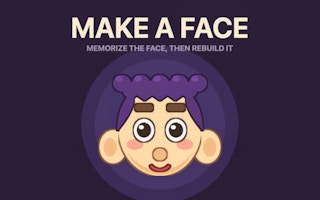
Remember every feature
Make a Face
Study a face for a few seconds, then select matching hair, eyes, and other features from close alternatives.

Preview a graduation look
Barbee And Friends Graduation Party
Style a graduation look in Fabbox Studios’ browser game: choose a friend, preview clothes and earrings, then confirm.