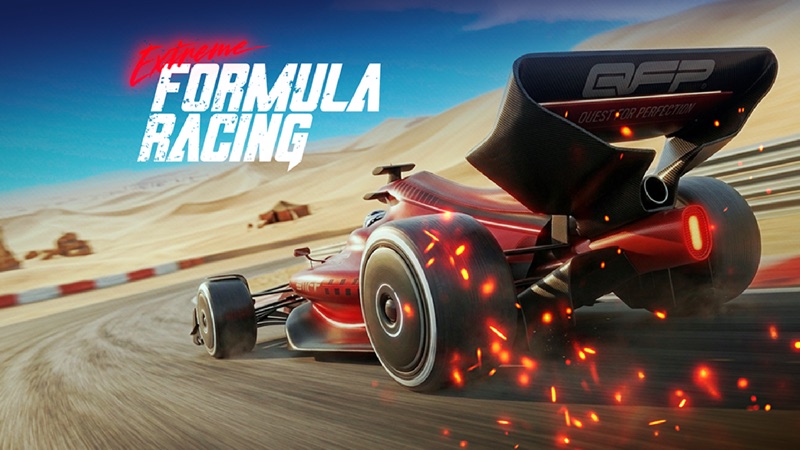
Extreme Formula Racing
Drive AxesInMotion’s formula car: click inside the cockpit, hold W, and follow Career’s timed checkpoints.
- Session
- Short play sessions
- Controls
- Click inside the driving view
- Best for
- Reaction
Focus, accelerate, steer
Extreme Formula Racing
Click inside the driving view
Play loads a game hosted by Playgama that may show ads and use cookies.
Provided by Playgama. Ads and cookies may load only after you press Play. Read the Playgama Privacy and Cookie Policy.
Choose PLAY and enter the opening Career stage.
How to play
How to Play Extreme Formula Racing
Start the opening Career stage and confirm that the accelerator actually changes your speed.
- 01
Open the hosted player and choose PLAY from the title screen.
- 02
Read the selected Career stage and its objective, then use the large PLAY button to enter the driving scene.
- 03
After the opening transition, click inside the road or cockpit view so keyboard input reaches the game.
- 04
Hold W to accelerate. Compare the speed readout with the slow starting pace before attempting a long run.
- 05
Use short A or D presses to steer. Look ahead and release the steering key when the car is aligned with open road.
- 06
Follow the checkpoint marker and distance display while checking the countdown. Confirm each crossing on the live checkpoint indicator.
- 07
If time expires, read the result and choose a normal exit or retry. Video or coin continuation offers are optional choices, not required steering controls.
About the game
Accelerate toward the first timed checkpoint
Extreme Formula Racing by AxesInMotion puts you in the cockpit of a formula-style car. Use Play above for its official browser player. The opening menu presents Career with Stage 1, and the first driving objective is to reach three checkpoints before time runs out. Read that live objective before treating the session as an unrestricted endless drive.
Click inside the actual driving view before using the keyboard. Hold W to accelerate, use A or D for short steering corrections, and watch the speed in the top-right corner. The publisher also lists arrow-key driving controls. If the car stays at its slow starting speed despite a held key, restore focus inside the play area before changing your driving strategy.
The checkpoint display combines your current target with a distance remaining, while the countdown shows the time left. These are more useful for the first Career attempt than a promise of a perfect line or a universal score. This guide explains the opening controls and the timed task; it does not provide a guaranteed three-checkpoint route or assume a checkpoint always awards extra time.
Controls
Controls for Extreme Formula Racing
- Click inside the driving view
- Give the game keyboard focus before accelerating.
- W / up arrow
- Accelerate; W works in the opening desktop Career stage.
- A / D or left / right arrows
- Steer left or right with brief corrections.
- S / down arrow
- Brake according to the publisher’s listed driving controls.
Useful strategy
Learn the car before chasing a complete stage
- Check that speed rises when you hold W. A slow car may be missing keyboard focus rather than needing a vehicle upgrade.
- Read the Career objective before moving: the opening asks for three checkpoints within a countdown.
- Look farther up the road so a correction begins before the obstacle reaches your front wheels.
- Release a steering key once the car is lined up; holding it longer can turn a small correction into a large drift.
- Watch both checkpoint distance and remaining time instead of following speed alone.
- Use an unsuccessful attempt to learn the controls and route. Do not assume a coin or video continuation is necessary to understand the game.
A moving road does not prove the accelerator is working
The car can be visible on the track at a slow pace before your intended keyboard action takes effect. Watch the speed readout when you press W. If it remains unchanged, release the key, click inside the driving view, and try again. This makes the difference between starting an input and merely watching the game’s initial movement.
Click in a clear part of the road or cockpit rather than on a menu, a continuation offer, or an advertisement. Then hold the accelerator long enough to see a meaningful change. A speed increase tells you that the game received the action. You can then add steering separately, which is easier to understand than pressing several unfamiliar keys before confirming focus.
Returning from another tab can also leave the player waiting for a visible continue prompt. Resume through that prompt if it appears, then click back into the driving scene. Keep the keyboard action tied to observable speed and direction. This simple check is useful before interpreting a slow opening run as a problem with the car or the stage.
Use the live countdown and checkpoint distance together
Stage 1 displays a goal of reaching three checkpoints before time runs out. Once the initial instruction clears, the current checkpoint appears with a distance in meters. Use that distance to judge whether you are progressing toward the next target, and use the countdown to judge how much time remains. Neither display should be read in isolation.
A declining distance shows that the car is approaching the current target, but it does not mean that the checkpoint has already registered. Look for the live indicator to change when you cross the marked area. Continue following the next target shown by the game. Avoid assuming that every checkpoint resets the timer or gives a fixed reward, because those details require the actual stage result.
The opening Career task is different from simply surviving on an endless road. Overtaking can be part of driving well, but a risky maneuver that delays the checkpoint does not automatically help this objective. Learn the current route first, then decide whether an extra pass is worth the space and attention it requires.
Choose a clear line before holding the accelerator
The cockpit view makes nearby traffic feel close, so look toward the road ahead rather than only at the front wheels. Choose an open line, begin a small steering correction, and release the key when the car is aligned. This gives you time to reassess before making the next input instead of continuing a turn simply because the key is still held.
A useful practice sequence is acceleration on clear road, one brief left or right correction, then straight driving again. It lets you compare the steering response at your current speed. Sudden alternating inputs can make it difficult to understand which action moved the car into a poor line, especially when the countdown is drawing your attention elsewhere.
Keep your target and the available road in view together. A checkpoint goal does not remove barriers or traffic from the route. If the next section demands a larger correction, prepare before you reach it. There is no universal key-hold duration that fits every speed or corner; use the car’s visible response to decide when to release.
Read an unsuccessful attempt before starting another
When time runs out, the game offers continuation choices and a way to give up the current attempt. A coin price or video symbol belongs to that choice; it is not part of accelerating or steering. If you only want to learn the opening, you can end the attempt and read the normal result rather than using an offer you do not want.
The result screen separates goal completion, distance, overtakes, and boost use. These categories describe different parts of the attempt. A traveled distance by itself is not proof that the three-checkpoint goal was completed. Use the goal indicator to distinguish an unsuccessful training run from a completed stage, even if some other number increased.
On the next attempt, correct one clear problem. If the car stayed slow, confirm keyboard focus and acceleration. If it wandered across the road, shorten steering inputs. If you lost track of the objective, check the checkpoint distance earlier. This keeps a retry purposeful rather than repeating the same opening without understanding what needs to change.
Use the opening car to understand the task first
The menu includes a garage and other mode labels, and some controls carry locks or video symbols. Their presence does not tell you that you need to use them before learning Stage 1. Begin with the available Career start and understand the driving response. A familiar opening attempt is a better comparison point than changing both the vehicle and the mode immediately.
If you later inspect the garage, read the live price and vehicle description before making a choice. The publisher describes earning coins and unlocking formula cars, but that does not establish a complete purchase order or a guaranteed improvement for every timed task. Keep a specific reason for the change, such as a handling preference you have actually noticed.
The same restraint applies to boost and refill offers. Learn where the normal accelerator, steering, checkpoint display, and countdown are first. Later options can be assessed when you understand the base run. You do not need to treat every bright menu button as the next required step.
Quick answers
Extreme Formula Racing FAQ
Where can I play Extreme Formula Racing by AxesInMotion?
Use Play above to launch the official Playgama browser player. The source below identifies AxesInMotion and the exact title, so you can distinguish this release from similarly named formula racing games.
Why is the car still slow when I hold W?
Release W, click inside the actual road or cockpit view, and then hold W again while watching the speed readout. Keyboard focus can be missing even though the driving scene and its initial movement are visible.
What is the first Career objective?
The opening Stage 1 asks you to reach three checkpoints before the countdown runs out. Follow the current checkpoint and its distance display, then confirm that the indicator changes when a crossing registers.
Does a checkpoint always give more time?
This guide does not promise a fixed time bonus or timer reset. Use the live stage display to see what happens after a crossing. Maintaining speed and confirming the next target are the useful opening habits.
Do I have to use a video continuation?
A video-marked continuation is an optional offer after a failed attempt. You can choose the normal give-up path to read the result and learn from the run. It is separate from the basic driving controls.
Game information
Game details
Extreme Formula Racing is developed by AxesInMotion and distributed through the official Playgama player.
- Developer
- AxesInMotion
- Distributor and host
- Playgama
More about this game
Keep the break going
Similar games

Super Nitro Racing 3
Super Nitro Racing 3
Steer an automatically accelerating car around top-down circuits, manage damage, and save nitro for a clear line.

Keep the wheels above water
Race Survival: Arena King
Steer an automatically accelerating car across a collapsing arena, jump over gaps, and try to be the last car standing.